



Key takeaways:
- It’s free to start. Tidio’s Free plan includes live chat, widget customization, the mobile and desktop apps, 10 seats and 50 billable conversations a month.
- Use one install method. Add the Tidio plugin on WordPress or WooCommerce, the Tidio app on Shopify, or one line of JavaScript just above the closing </body> tag on any other site.
- Set it up before visitors arrive. Match the widget’s colors and position in Settings > Live Chat > Appearance, and download the mobile and desktop apps so new chats reach you.
- Test it as a visitor. Send a message from an incognito window. If the widget doesn’t show up, check the cache, where the code sits, and whether two install methods are running at once.
You want visitors to reach you while they’re still on the page. Adding live chat to your website takes one plugin or one line of code, and the rest is setup you can finish in the same sitting. By the end of this guide, a chat widget will sit on every page of your site and you’ll have answered your first message from it.
We’ll use Tidio for the screenshots because its Free plan includes live chat. The steps are similar in most live chat tools. Already have a Tidio account? Go straight to Settings > Live Chat > Installation and start at Step 2.
Use live chat to support your customers in real-time
How to add live chat to your website in 5 steps
Step 1: Create a free Tidio account
Your account holds the chat code, the widget settings and the inbox where messages arrive.
- Go to tidio.com and click Get Started.
- Enter your email and a password, and add your website address when asked.
- Answer the short product tour questions about your business.
The Free plan includes live chat, widget customization, the mobile and desktop apps, 10 seats and 50 billable conversations a month. You can also try every paid feature on a 7-day trial without a credit card; after it ends, the account moves to the Free plan unless you upgrade.
Result: you land in the Tidio panel, and the last screen of the tour shows your installation code.
Note: if you’re still choosing a tool, our roundup of free live chat software compares the options. The install steps below work the same way in most of them.
Step 2: Install the chat widget on your site
Installing the widget is how you implement live chat on your website and integrate chat into every page. Pick one method and use only that one. Tidio’s help center asks for a single install method per site, either the plugin or the code.
| Your site runs on | Use | Time to install |
|---|---|---|
| WordPress or WooCommerce | The Tidio plugin | A few clicks inside WordPress |
| Shopify | The Tidio app, then the theme’s app embed | A few clicks inside Shopify |
| Wix, Squarespace or another site builder | The builder’s custom-code field | One paste |
| Custom HTML or any other CMS | The JavaScript code above </body> | One paste |
On WordPress or WooCommerce
- In your WordPress dashboard, go to Plugins > Add Plugin.
- Search for “Tidio” and click Install Now, then Activate.
- Create your free account in the registration screen that opens, or click Log in if you made one in Step 1.
Result: the chat widget appears in the lower right corner of your site. The plugin is also listed on WordPress.org.
Read more: how to add a chat plugin to WordPress.
On Shopify
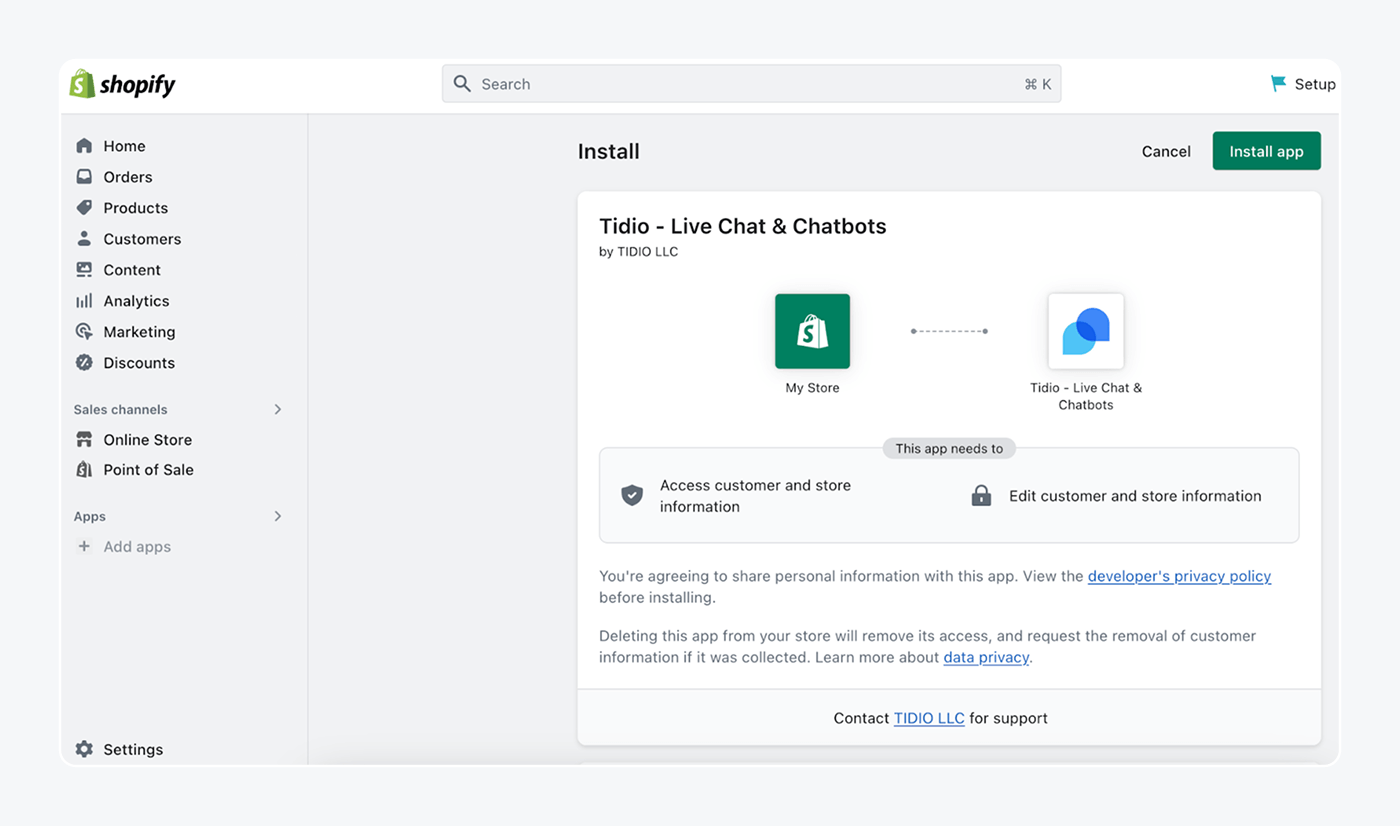
- In your Shopify admin, open Apps, search for “Tidio” and open the Tidio listing in the Shopify App Store.
- Click Add app, then Install App. Shopify sends you to the Tidio panel.
- Back in Shopify, go to Online Store > Themes and click Customize on your live theme.
- Open App embeds, switch on the Tidio Chat Widget toggle and save.
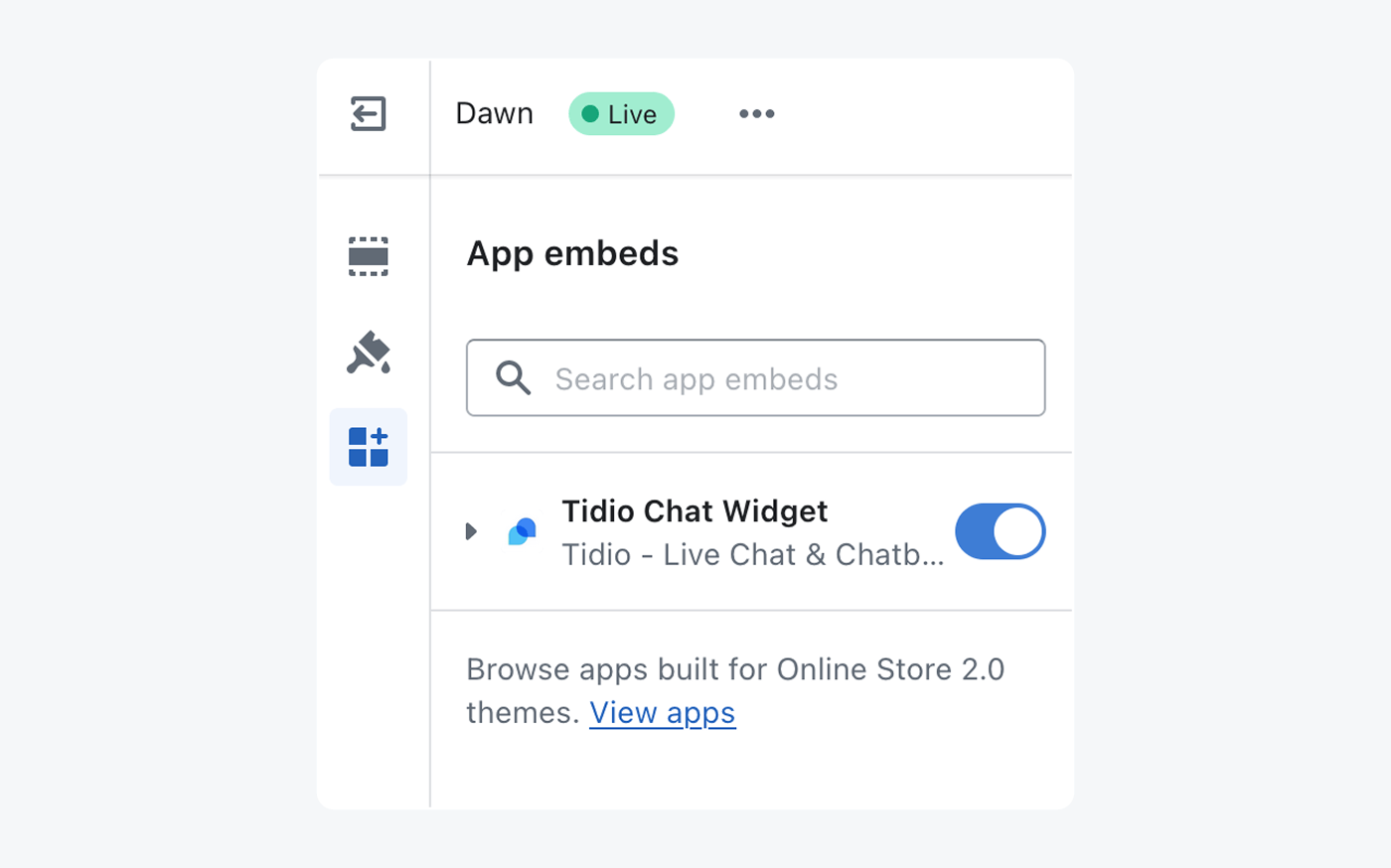
Note: you need to switch the app embed on again each time you change your Shopify theme.
Read more: Shopify live chat apps compared.
On Wix or Squarespace
Both builders take the Tidio code through a custom-code field. Copy the code first from Settings > Live Chat > Installation in Tidio (substeps 1 and 2 under “With the code” below).
- Wix: go to Settings > Advanced > Custom Code, find Body – End and click Add code. Paste the code and choose the pages it should load on. Custom code needs a paid Wix plan and a connected domain.
- Squarespace: open the Pages panel, scroll to Custom Code and select Code Injection (on version 7.0 sites, it’s under Website Tools). Paste the code into the Footer field and save. Squarespace’s code injection guide has the details. The widget may not appear inside the Squarespace editor; open your site as a visitor to see it.
Read more: Wix live chat options and the Squarespace chat plugin guide.
With the code (custom HTML or any other CMS)
Use this method to embed chat in a website with no plugin, including a plain HTML site.
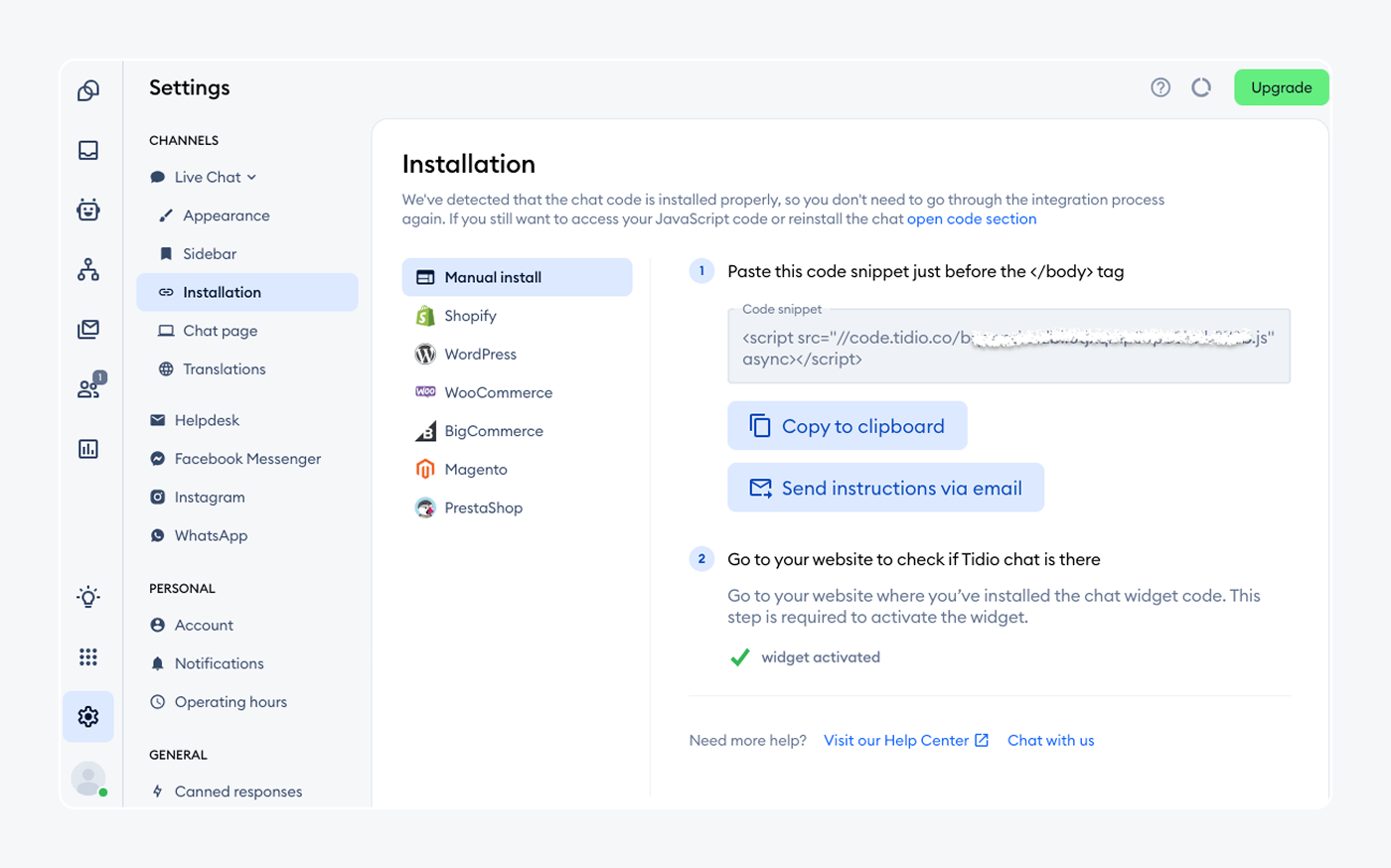
- In Tidio, go to Settings > Live Chat > Installation and open the Manual install tab. If you don’t see the code, click the link that opens the code section.
- Click Copy to clipboard.
- Open your site’s files on your server, or your platform’s code editor. Find the file with the closing </body> tag, usually index.html or index.php, or a shared footer template.
- Paste the code just above </body> and save the file.
<!-- Paste your own code from Settings > Live Chat > Installation -->
<script src="//code.tidio.co/YOUR_PUBLIC_KEY.js" async></script>
</body>
Result: reload your website and the chat bubble shows in the bottom right corner of every page that loads the footer.
Note: on WordPress you can paste the code into Appearance > Theme File Editor > footer.php instead of using the plugin, but never do both.
Step 3: Customize how the chat widget looks
Match the widget to your site’s colors so visitors read it as part of your brand.
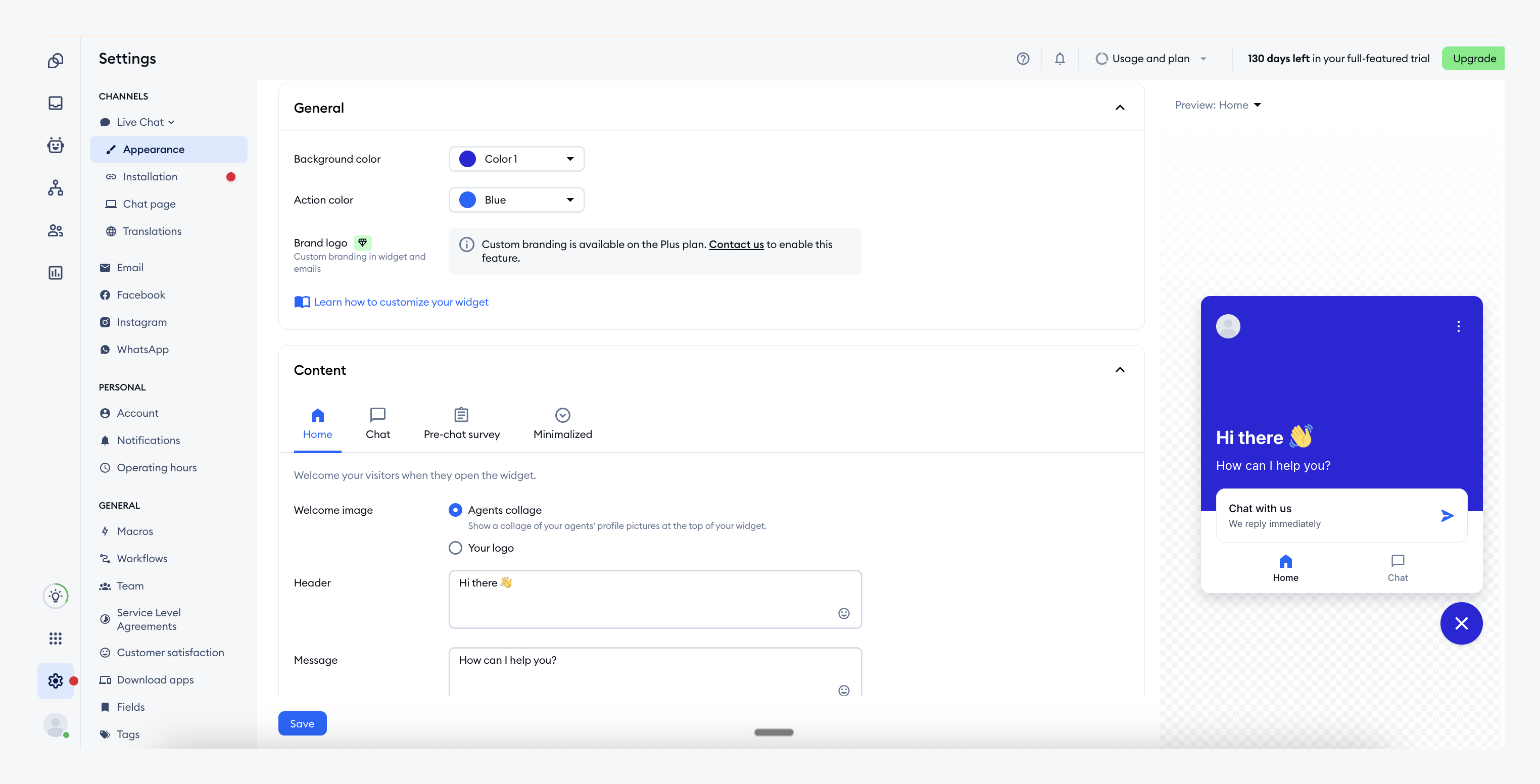
- Go to Settings > Live Chat > Appearance.
- Under General, set the Background color and the Action color (the buttons and send icon).
- Under Content, edit what visitors see when they open the widget, starting with the home screen.
- Under Visibility and position, set where the widget sits and whether it shows on desktop, mobile or both.
- Click Save at the bottom of the page.
A preview of the widget stays on the right, so you can check each change before you save it.
Result: your site shows the widget in your colors and position after a refresh.
Plan note: replacing the Tidio logo with your own brand logo is available on the Plus plan.
Read more: chat widget design examples.
Step 4: Download the mobile and desktop apps
A chat widget only works if someone sees the messages. The apps send you new chats on your phone and computer, so you don’t have to keep the panel open in a browser.
- Go to Settings > Download apps.
- Pick iOS or Android for your phone, and macOS, Windows or Linux for your computer.
- Log in with the same email and password you used in Step 1.
Result: a new chat on your site triggers a notification on your phone and desktop.
Step 5: Send a test message and reply to it
Test as a visitor would, from a clean browser session, so cached files don’t hide the widget.
- Open a new incognito window (Ctrl+Shift+N on Windows, Cmd+Shift+N on Mac) and go to your website.
- Click the chat bubble and send a message, for example “Do you ship to Canada?”
- Open the Tidio panel or the app, find the conversation in your inbox and type a reply.
- Check the reply arrives in the incognito window.
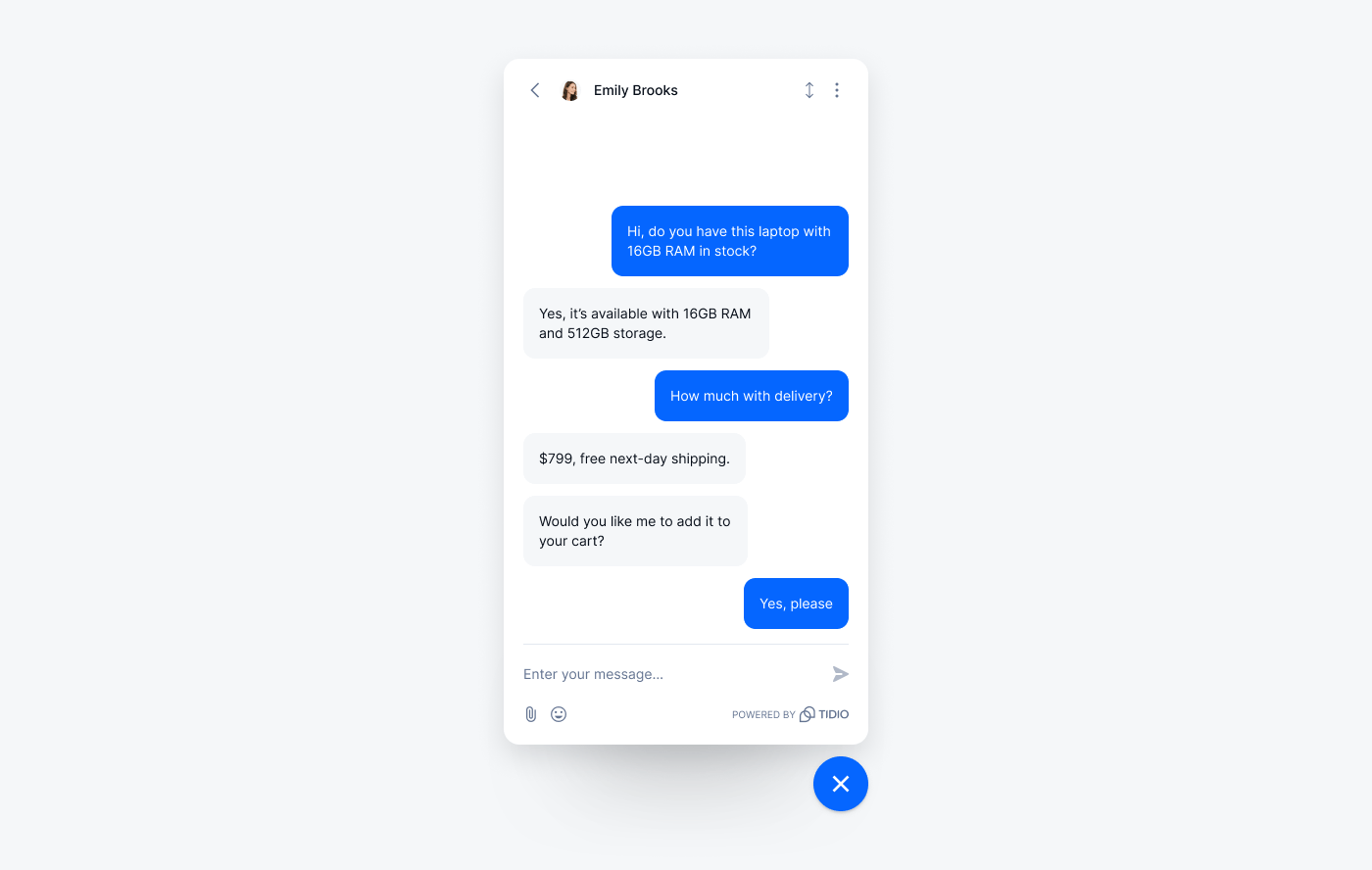
The widget shows as online when at least one agent is online. You can switch your own status by clicking your avatar in the bottom-left corner of the panel and using Show online status.
Result: you’ve sent and answered a real chat. Your website has live chat.
Check that it works
If the widget doesn’t show up, check these causes. The fixes come from Tidio’s help center.
| What you see | Likely cause | Fix |
|---|---|---|
| No widget anywhere on the site | The code isn’t on the page, or it’s above the wrong tag | Check the code sits just above </body> in a file every page loads, and that you saved it |
| Widget missing after you saved changes | Browser or site cache | Open a new incognito window, clear your browser cache, and purge any caching plugin |
| Widget still missing in incognito | The display setting is off | Go to Settings > Live Chat > Appearance > Visibility and position and switch on Display for desktop and mobile |
| Widget disappears when your team logs off | Display widget when agents are offline is switched off | Switch it on in Settings > Live Chat > Appearance > Advanced, or go online in the panel |
| Shopify widget gone after a theme change | The app embed was turned off | Online Store > Themes > Customize > App embeds, switch on Tidio Chat Widget |
| Both the plugin and the code are on the site | Two install methods at once | Remove one and keep a single install method |
| Wix site shows no widget | Free Wix plan or no connected domain | Custom code needs a paid Wix plan and a connected domain |
Still stuck? Tidio’s support team can check your setup at support@tidio.net; include your website address and your Public Key from Settings > Developer.
Add live chat to your website with Tidio's Free plan
What to do next
Each of these extras has its own guide.
- Set operating hours. Show visitors when someone will answer. Settings > Operating Hours switches your status automatically. Plan note: Operating hours start on the Starter plan.
- Greet visitors automatically. A welcome message built in Flows opens the conversation for you. The Free plan includes Flows for your first 100 visitors reached; see how chat flows work.
- Save replies you type every day. Canned responses, called Macros in Tidio, are part of the Growth plan. Our live chat scripts give you ready text to start with.
- Answer Messenger, Instagram and WhatsApp in the same inbox. Connect Messenger, Instagram or WhatsApp; the integrations are included on the Free plan.
- Let AI answer common questions. Lyro, Tidio’s AI agent, replies from your FAQ and website content and hands the chat to you when it can’t help. Your first 50 Lyro conversations are free. Follow our guide to creating a chatbot for your website.
- Agree on how your team chats. Our live chat best practices cover greetings and wait times, plus how to close a chat.
Why add live chat to your website
Email and contact forms ask a visitor with a shipping or sizing question to wait. Chat answers them on the page they’re reading. In Tidio’s customer experience study, almost 44% of online customers said a customer service reply should come in under 5 minutes.
Chat also shows you what visitors get stuck on. The same questions arrive again and again. Their answers belong in your FAQ and on your product pages, and an AI agent can use them too. For more on what changes once chat is live, see what live chat is and how teams use it, or the customer service metrics worth tracking once conversations start.
Your website has live chat
You’ve installed and styled the widget, then answered a test chat. Next, pick one extra from the list above, such as operating hours or a welcome message, and set it up this week.
FAQ
Yes. Tidio’s Free plan includes live chat, widget customization and the mobile and desktop apps, with 50 billable conversations a month and 10 seats. Paid plans add features such as operating hours and canned responses.
Copy your code from Settings > Live Chat > Installation in Tidio and paste it just above the closing </body> tag of your HTML file, usually index.html. Save the file and reload the page. The live chat HTML code is one <script> line, so it works on any site where you can edit the code.
No. On WordPress, WooCommerce and Shopify you install a plugin or app with a few clicks. On Wix, Squarespace or a custom site you paste one line of code into a field or file; you don’t write any code yourself.
Yes. Paste the same Tidio code on each site and all chats arrive in one shared inbox. Plugins don’t apply to this setup, so use the code on every site.
The widget switches to offline when every agent is offline. Visitors then see an Offline Message form that asks for their email address, and if you switch on offline email notifications in Settings > Notifications, Tidio emails you each missed conversation so you can reply later. If you’d rather not take chats while you’re away, you can hide the widget when everyone is offline.
Start chatting with your website visitors on Tidio's Free plan
